
Connect with SSH Client

RAMESH
0 followers
AWS( Amazon Web Service) provides various cloud related services which includes virtual machines (EC2 Instances), AWS Lambda, Amazon Elastic Container Service, S3, IAM and RDB. AWS is the one of the most popular cloud provider in the world.
AWS provides EC2 (Elastic Compute Cloud) which used to runs virtual machines with host Operating systems like Linux, Windows or MacOS. We can create EC2 instance with AWS Web Platform which our AWS account. Once instance is created and it's in running state then AWS provides public IP address, Private IP address and DNS server address for this EC2 instance. We can use this public IP address to connect with EC2 instance via SSH using key.
Below I'm mentioning step to created EC2 instance and access via SSH with out system.
AWS provides free tier access to there services for 12 month with $200 credit. So, if you don't have any account with AWS then create AWS account. AWS free tier provides 3 types of EC2 instance with each specific resources capacity. While creating AWS account you required mail, password and Authenticator for MFA (Multi Factor Authentication). Create your account and login in AWS web platform.
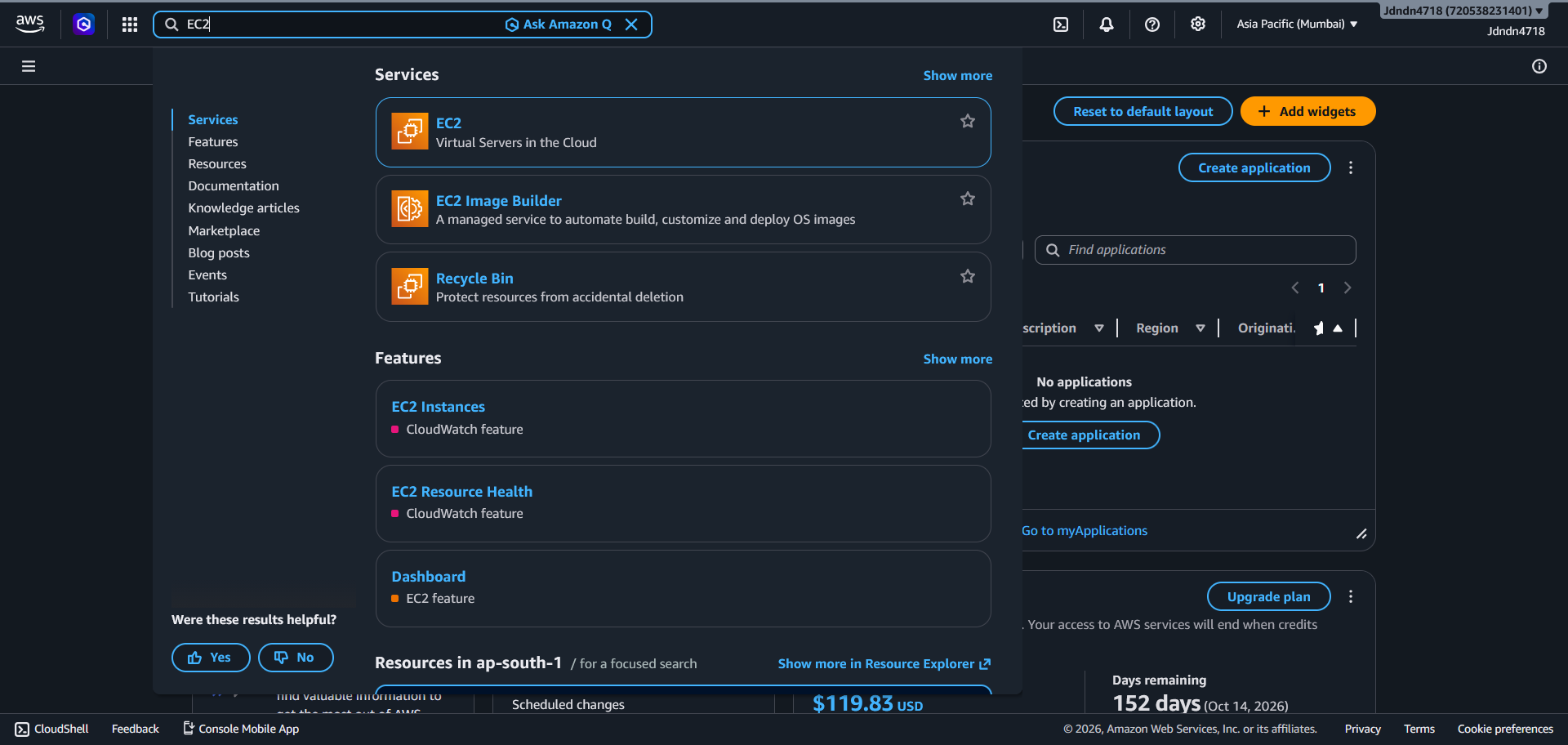
Once you are landed in console page, we can see various application provided by AWS . In search bar search for EC2 instance, we get result with EC2 instance under services and move forward with this service.
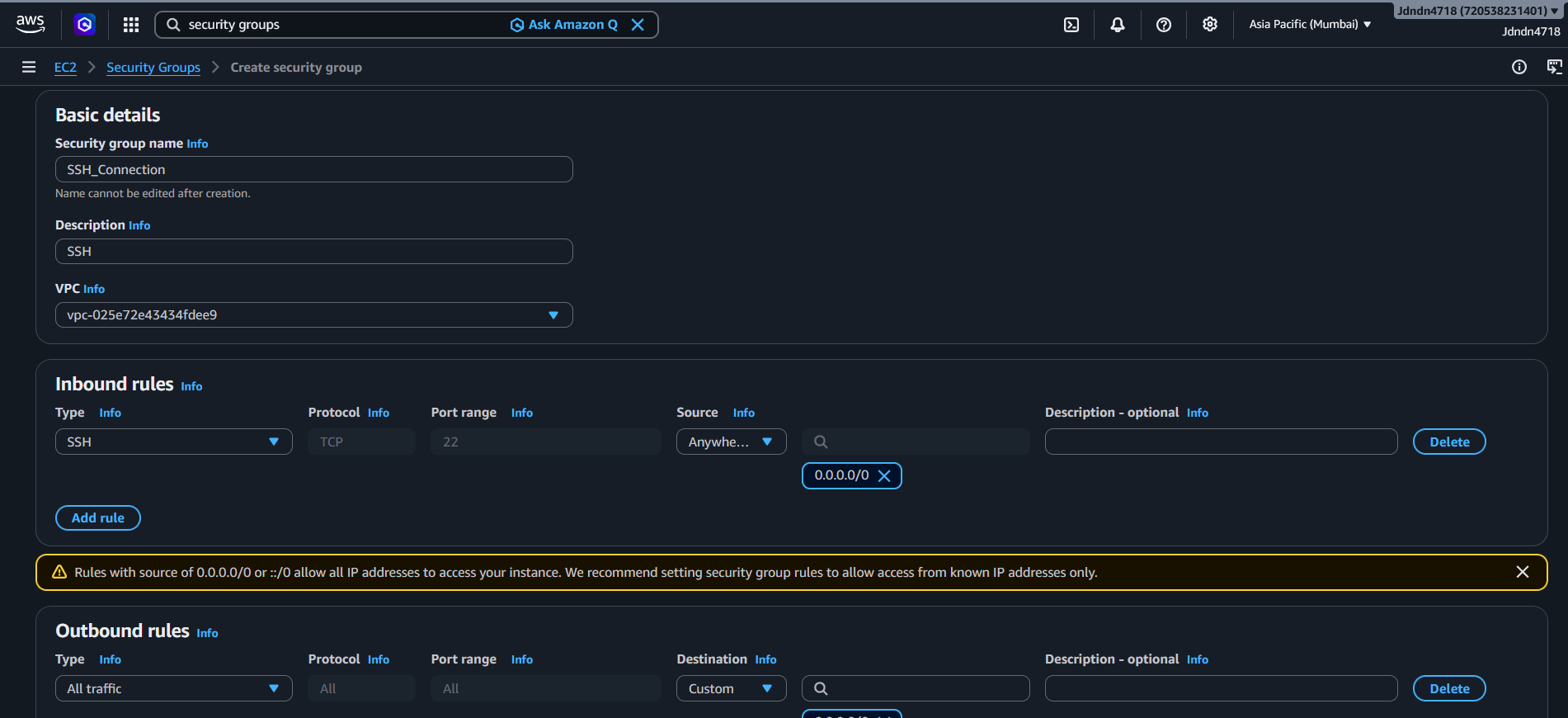
Security groups are defined to secure virtual machine from other network traffic. Here we define inbound and outbound network traffic with IP address.
In search bar, search for security groups and in result there will be security group under EC2 instance go with that. On security group page create new security group and define inbound and outbound traffic. In inbound traffic add one rule and in type select SSH, in source use My IP or custom which will be (0.0.0.0 all IPv4 Address) if IPS provides dynamic IP to your device it would be better to select custom IP and In outbound traffic use can make as it is or change to your requirement.
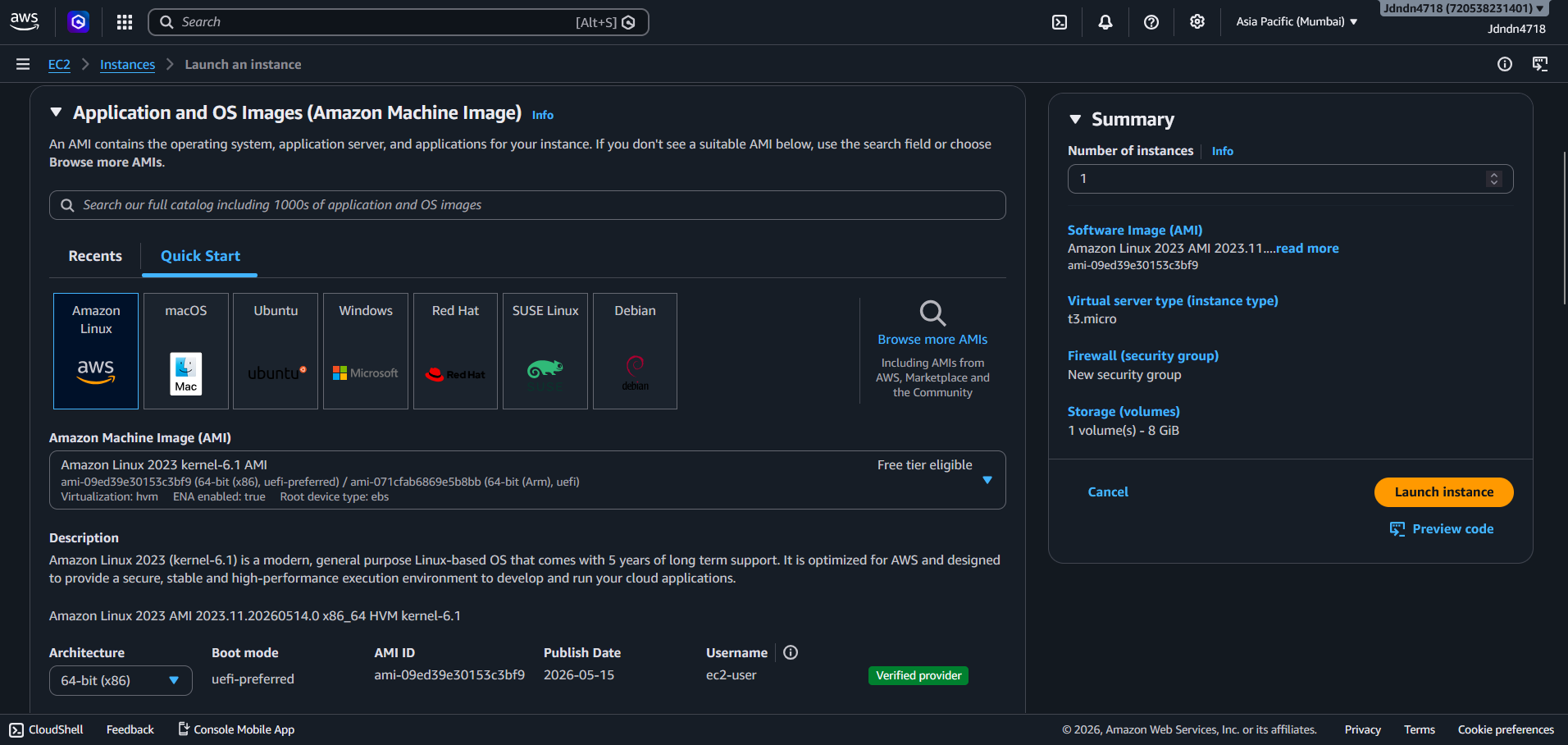
Once we are in EC2 instance page, we have option to launch EC2 instance. In this form we have to choose name for our instance (like WebServer, MainServer) and operating system we want to install on EC2 instance. EC2 provided OS options is AWS Linux, Ubuntu, Windows, MacOS, Debian and Red Hat. You can choose your OS according to your requirement but we use AWS Linux OS because its light weight and comfortable with cloud services. Also AWS provides various image for OS we can choose between with our requirements.
Here we also have to choose instance type, it specify resources specifications for this EC2 instance. You can choose instance types according to requirement for your services.
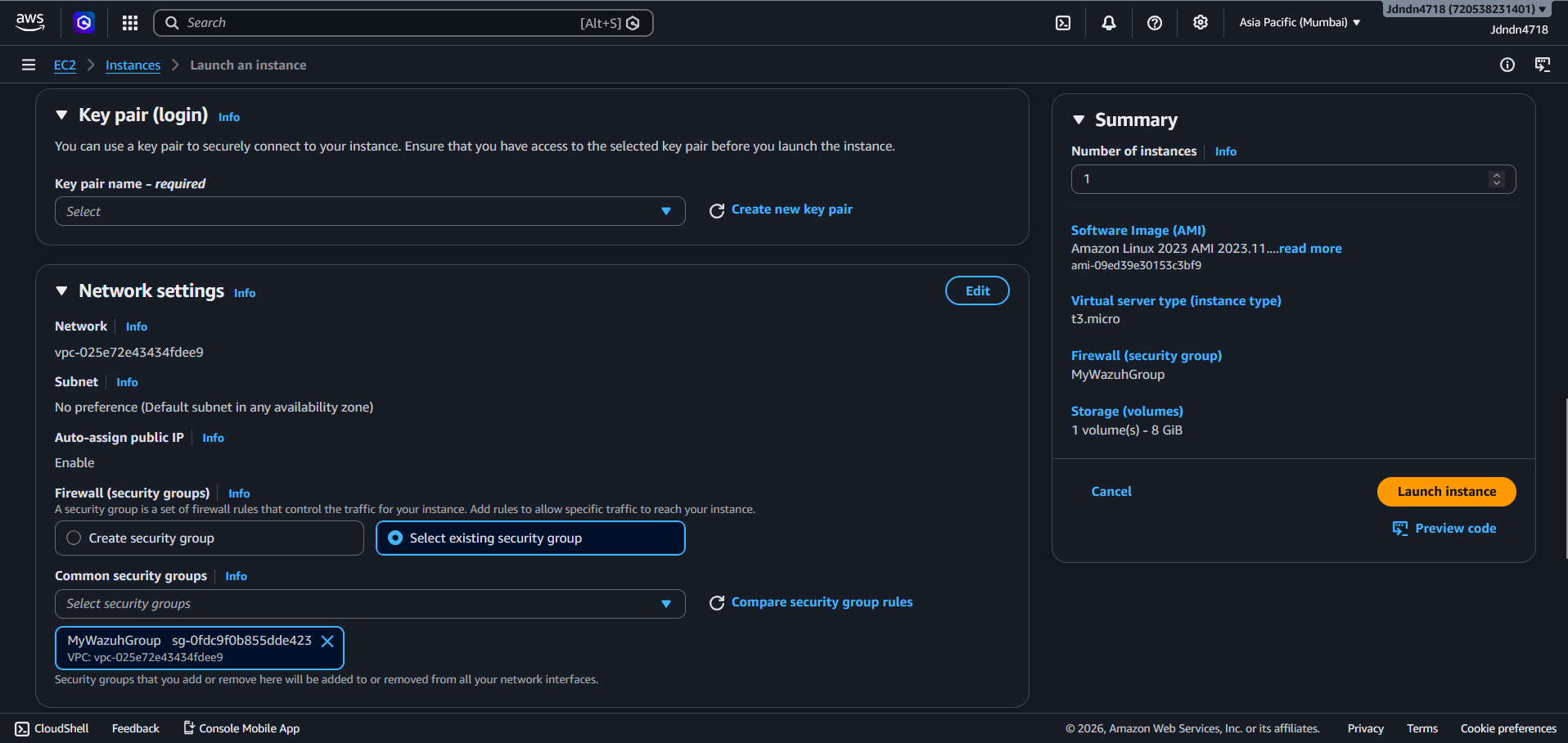
SSH login with virtual or remote machine requires SSH key pair, So in "key pair" section we can create SSH keys which we later use for SSH connection. SSH key can be generated using RSA and ED25519 algorithms. Generate SSH key with RSA algorithm and download private key in your system.
In next section we have options to provides IP address, which will be used in inbound and outbound traffic. Previously, we create security group with inbound and outbound traffic, now in select that security group in network setting.
Finally once all these done click on launch and it will start a EC2 instance and then go to instance shows information regarding this EC2 instances including Public and Private IP address and DNS Server. Copy public IP address of EC2 instance. It will also shows instance state for us it is showing running.
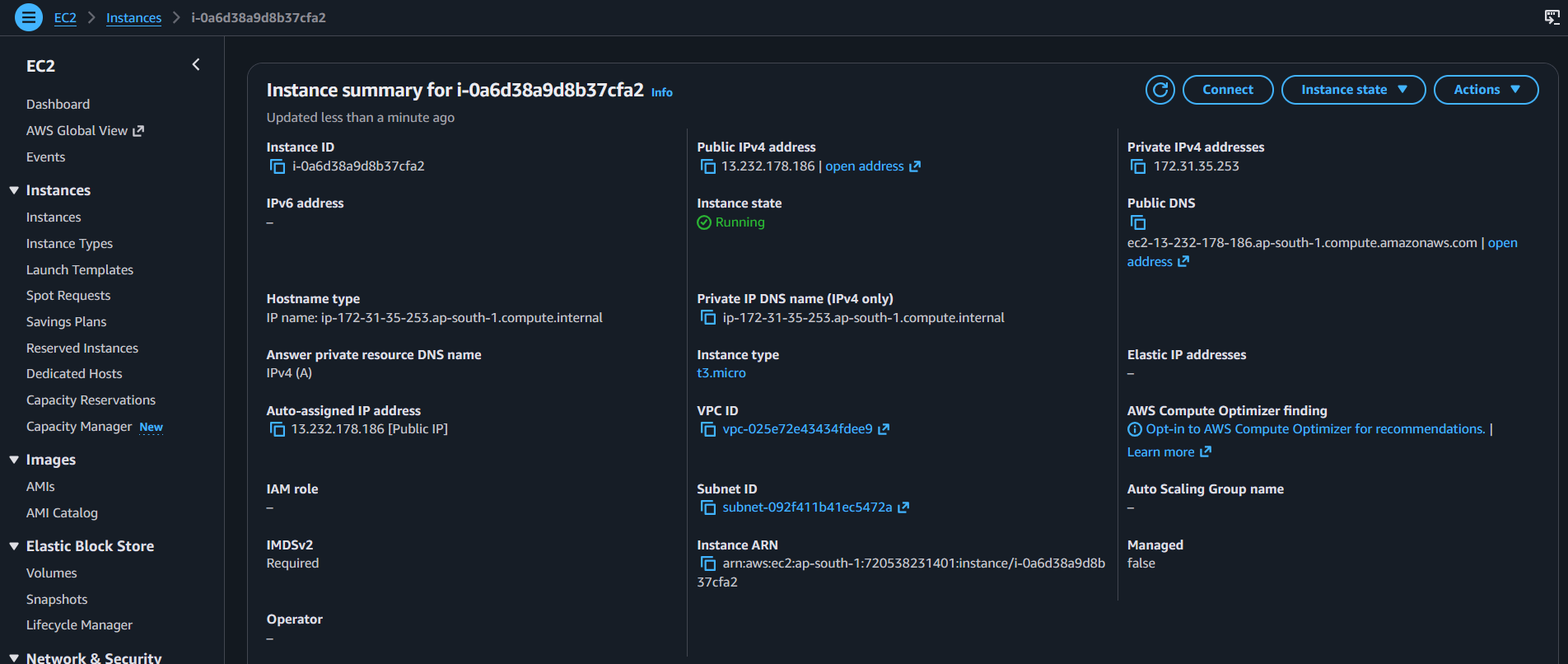
Open you directory where SSH key is stored and before SSH request to instance make key protected.
# Linux$ sudo chmod 400 key.pem$ ssh -i <key.file> ec2-user@<public ip>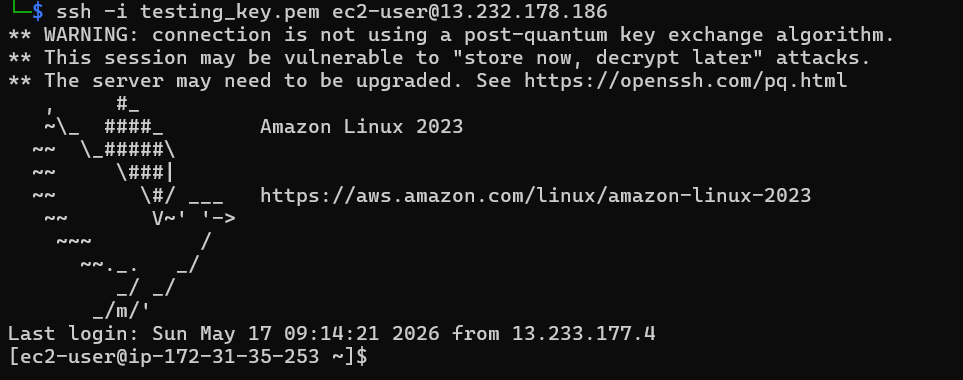
Thank you !!